

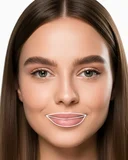
Understand skin tone. Build personalized experiences.
Analyze visible skin tone from a single image and turn precise color measurements into personalized beauty and product discovery experiences.

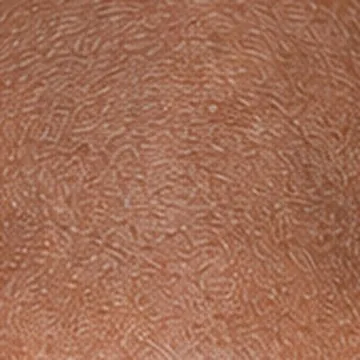
#A5694C · L* 50.4 · ITA 0.8°Tap a region on the face to inspect it.
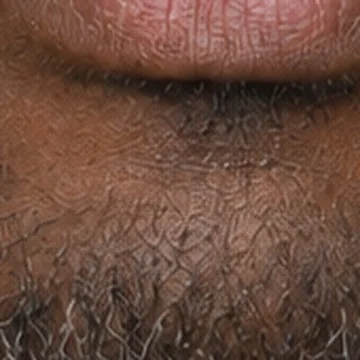
#936149 · ITA −10.0°Skin tone is more than a single color.
Skin appearance can vary across different areas of the face. Lighting, shadows and natural color differences make consistent measurement challenging, especially when building personalized digital experiences.
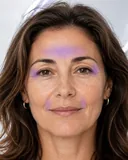
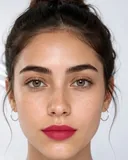
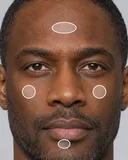
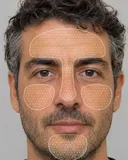
Morphia measures the overall skin tone and four facial regions from one image.
1234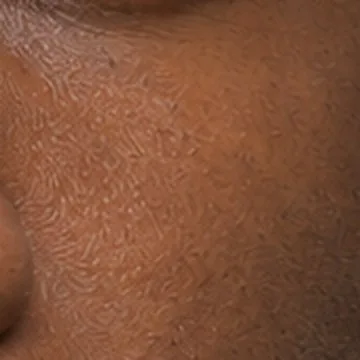
One image. A complete skin tone profile.
Measure visible skin tone across the face and four facial regions, with structured color data ready to use in your product.
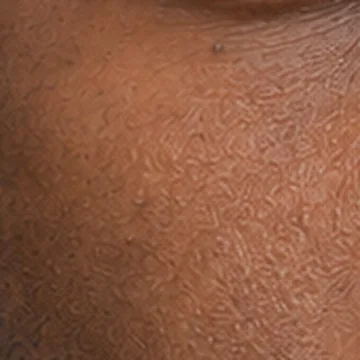
#A5694CClose-up from the same photo. The ring marks the pixels sampled for this point.
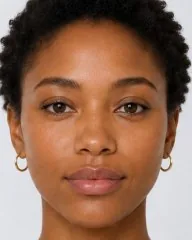


Capture a representative skin color from a single facial image.
Measure the forehead, left cheek, right cheek and chin individually.
HEX and RGB to draw swatches, CIELAB to compare the measured color with a shade catalog, ITA to read tone depth in your own logic.
Access consistency information, image quality warnings and optional masks showing the measured skin regions.
Turn skin tone insights into personalized experiences.
Use Skin Tone Analysis as the color data behind grooming, complexion and style products. Pick a scenario to see what goes in, what comes out and what the person sees.
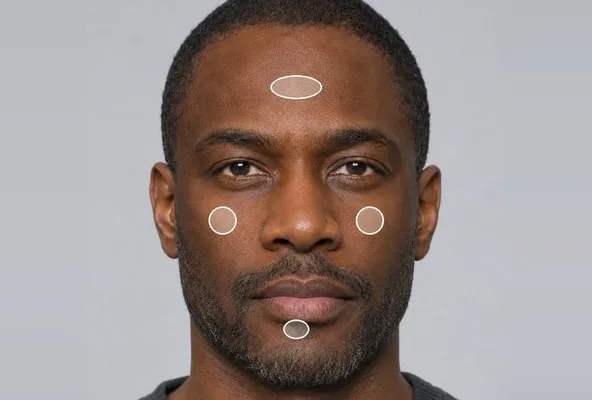 4 regions measured
The app turns ITA into a plain-language tone label and shows it with the measured swatch — no raw codes on screen.
Preview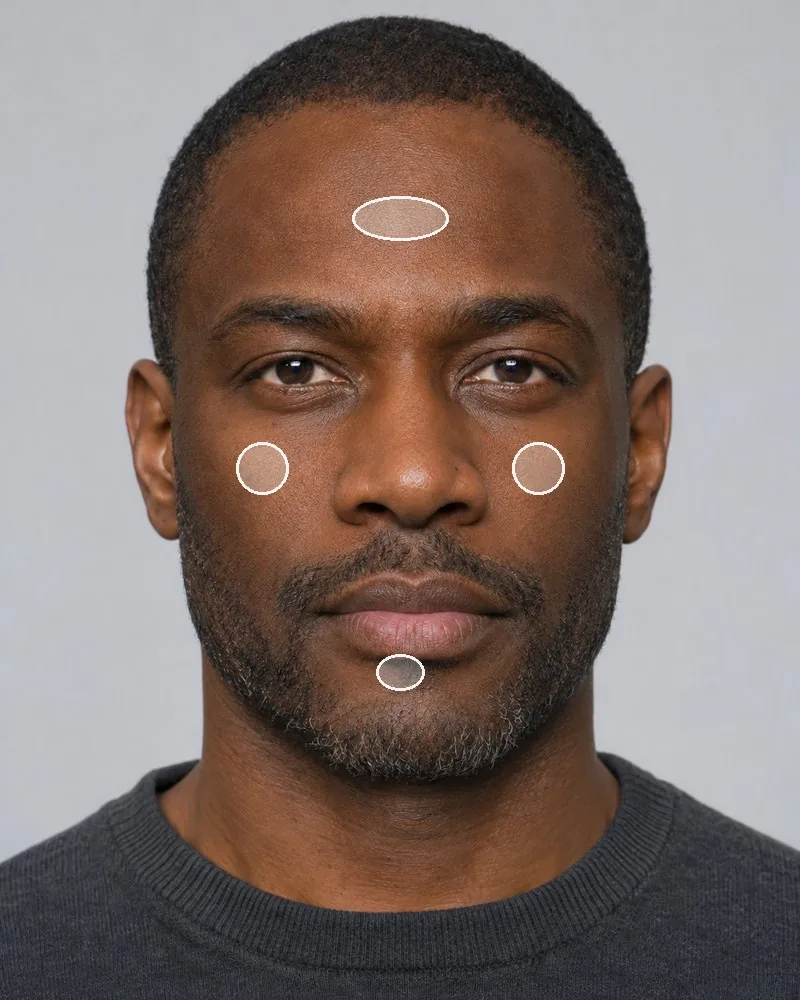 Measuring 4 regions…
Choose a photo, preview it, then analyze. The bag button keeps its place from the first screen — it becomes Add all to bag once the routine is ready.
The overall tone feeds your shade matching on the product page, so the nearest shade in the range is pre-selected.
Store the values on the profile once, then reuse them across grooming, clothing, eyewear and lip care without asking for another photo.
From skin tone data to product experiences.
Bring precise skin tone measurements into your product without building the underlying computer vision technology from scratch.
export MORPHIAONE_API_KEY="pk_test_..." MORPHIAONE_BASE_URL="https://api.morphiaone.ai"X-API-KeyASSET_ID=$(curl -s "$MORPHIAONE_BASE_URL/v1/assets" -H "X-API-Key: $MORPHIAONE_API_KEY" -H "Content-Type: image/jpeg" --data-binary @selfie.jpg | jq -r .id)MORPHIAONE_API_KEY and MORPHIAONE_BASE_URLnpm install --save-exact @morphiaone/sdk@0.2.2.mts with npx tsximport { readFile } from "node:fs/promises"; import { MorphiaOne } from "@morphiaone/sdk";
const client = new MorphiaOne({ apiKey: process.env.MORPHIAONE_API_KEY, baseUrl: process.env.MORPHIAONE_BASE_URL });
const source = await client.assets.upload(await readFile("selfie.jpg"));MORPHIAONE_API_KEY and MORPHIAONE_BASE_URLpython -m pip install morphiaone==0.2.2import os; from pathlib import Path; from morphiaone import MorphiaOne
client = MorphiaOne(api_key=os.environ["MORPHIAONE_API_KEY"], base_url=os.environ["MORPHIAONE_BASE_URL"])
source = client.assets.upload(Path("selfie.jpg"))curl -fsSL https://cli.morphiaone.ai/ | shOne Image, Multiple Measurements
Analyze overall skin tone and four facial regions from a single photo.
Structured Color Outputs
Access HEX, RGB, Lab, lightness and ITA classification through JSON.
Your Matching Logic
Connect results with your own products, recommendations and customer journeys.
Developer-Ready Integration
Build with REST APIs, Python or TypeScript SDKs, and optional visualization masks.
Make skin tone part of your product.
Turn skin tone measurements into personalized grooming, beauty and style experiences with Morphia.
UploadedYour selfie